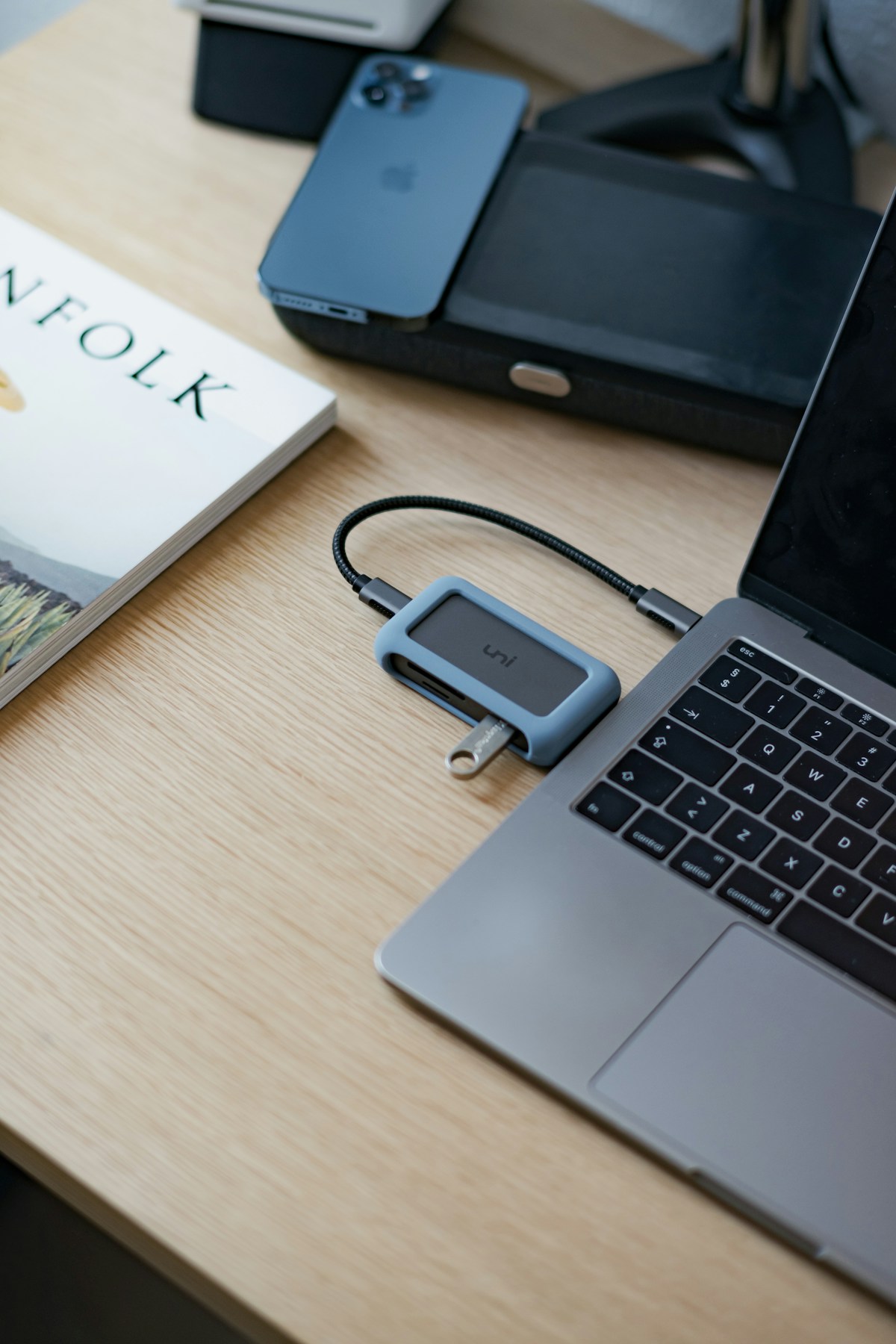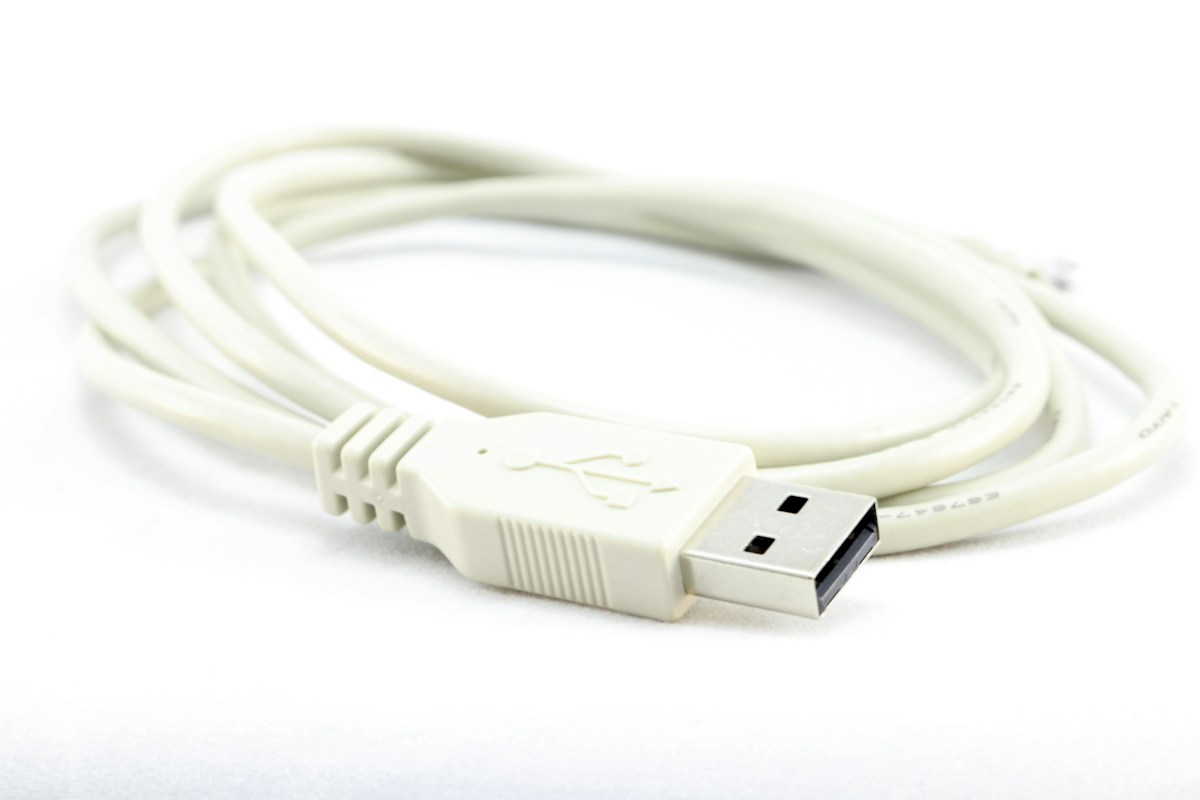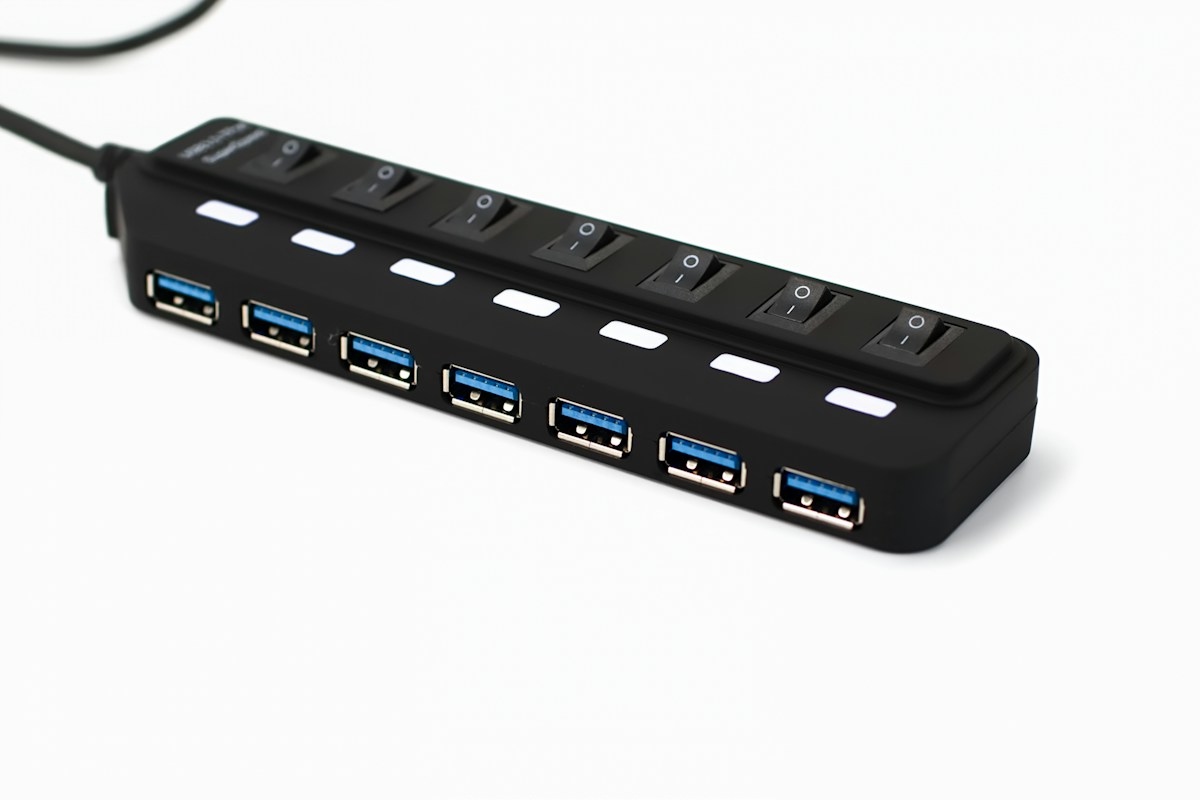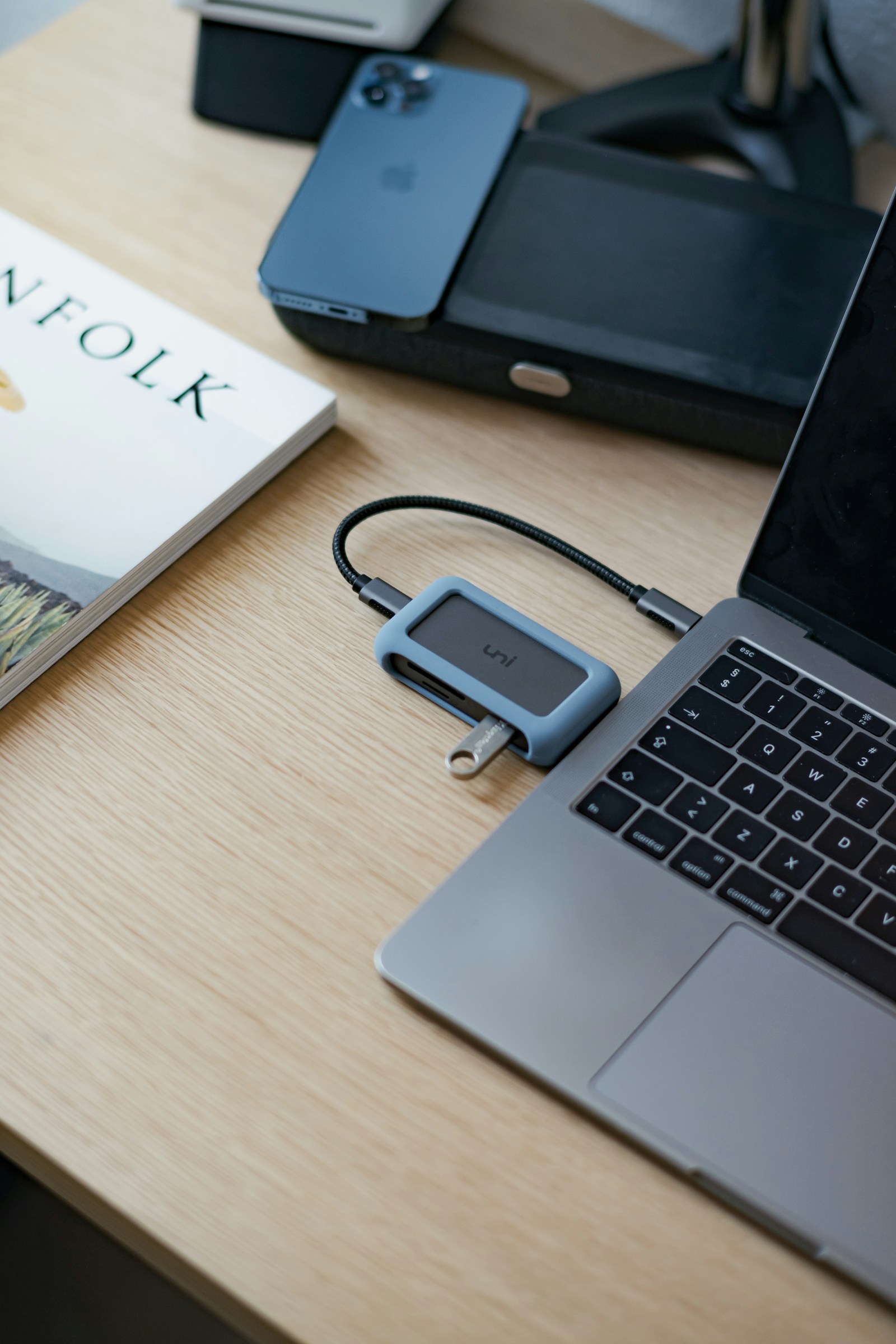
Modern laptops have few ports. A USB hub or docking station turns one connection into many, so you can plug in monitors, a keyboard, storage and a charger together. The details differ a lot between products, so here is what to check.
Hub or dock
A hub adds ports such as USB-A, HDMI or an SD card slot. A docking station does more: it can drive one or more monitors, add Ethernet, and charge the laptop through one cable. Docks are bigger and cost more.
Know your laptop's port
Check whether your laptop has USB-C, Thunderbolt or both. Not every USB-C port supports video output or charging. Look at the laptop's specifications to be sure. Thunderbolt docks need a Thunderbolt port.
Power delivery
If you want the dock to charge the laptop, check the power delivery rating in watts. It should match or exceed what your laptop needs, typically 60 to 100 watts. Some hubs let power pass through but keep some for themselves.
Video output
Check how many monitors the device supports and at what resolution. Many hubs output 4K at 30 Hz, which is fine for documents but looks choppy when moving windows. 4K at 60 Hz needs a more capable device and cable. Look for details on the number of displays.
Data speed
USB 3.0 and above is much faster than USB 2.0. If you transfer large files, look for 5 Gbps or 10 Gbps ports. Rapid external drives may need the fastest ports.
Other ports
Ethernet gives a stable connection for video calls. An SD card slot suits photographers. Audio jacks help with headsets.
Heat and cables
Docks can get warm, so leave space around them. Use the cable that comes with the unit, and keep it short.
Powered or bus-powered
Bus-powered hubs take power from the laptop. A powered hub has its own adapter, which helps when you connect hard drives.